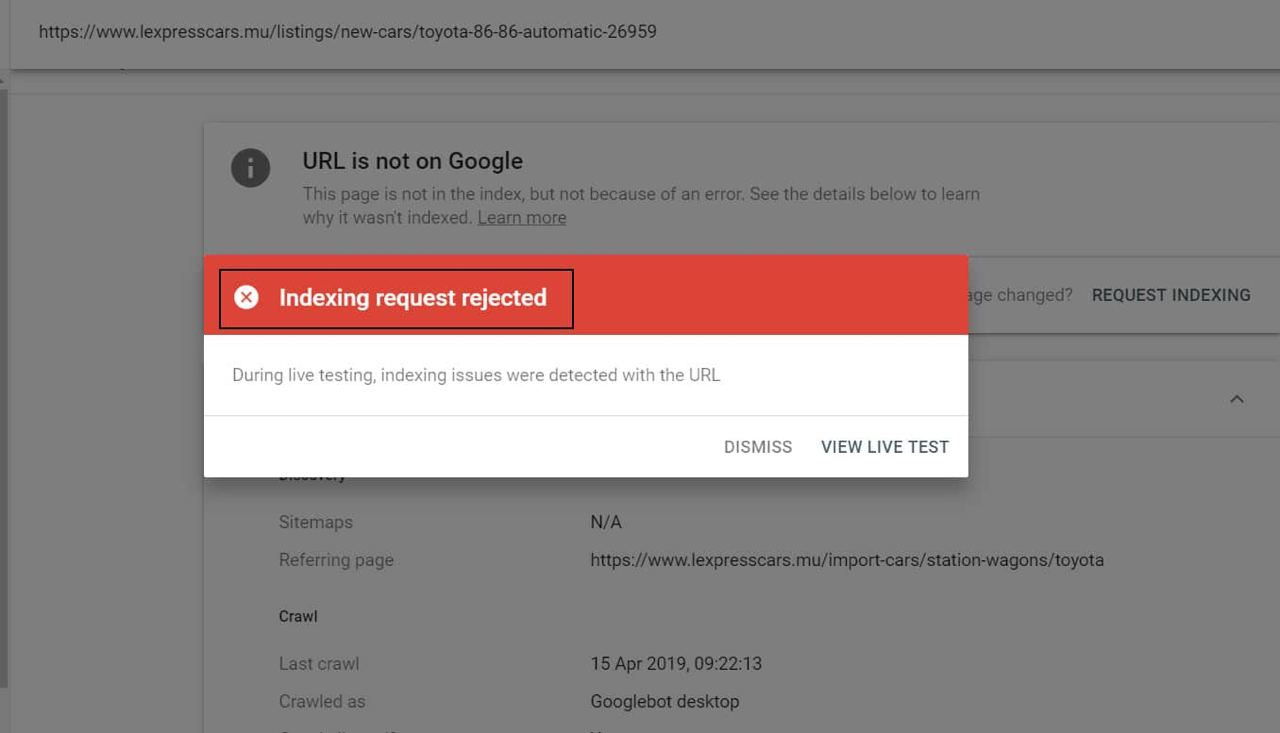
One of the errors you can meet in the URL inspection tool of Google Search Console is the phrase “Indexing Request Rejected”, which appears with a Live URL test request.
This error shows up when the live URL test tool, for whatever reason, cannot crawl the URL you entered.
Why could Google’s bots not reach our URL while running this test?
This error usually comes from blocking the page in the robots.txt file. If you enter that URL there, or the whole domain, you are telling Google’s bots to go back the way they came, and they have no permission to crawl your page.
Another cause of the error may be that you blocked some pages earlier, and now that you have returned them to their normal state, Google’s bots still have not visited your URLs — so you keep seeing the Indexing request rejected error in Search Console.
To see the state of your site’s robots.txt file, just type the site address into the browser and add /robots.txt at the end.
Opening that address takes you to a blank page, and if anything is recorded in the robots.txt file, it is shown there.
If you find the directive “Disallow: /” in this file, it means you have blocked Google’s bots from crawling.
To change that directive you need access to the hosting and to the site root. From the hosting user panel, go into file management and look for the robots.txt file inside the public_html folder. If you cannot find it, you can use the search option in the file manager.
If you have no knowledge of the directives in this file, it is better to leave it empty.
Finally, save the changes and wait for Google’s bots to come to your URL.
Note: do not expect the indexing request rejected error to be resolved in the same hour you changed robots.txt. Let a few hours pass since the changes, then go back to the Live URL test.
Omid Bodagh

I am an SEO specialist who likes helping businesses get seen on Google. From WordPress to SEO, whatever an online business needs to grow, I can help with it.